> ## Documentation Index
> Fetch the complete documentation index at: https://docs.browser.ai/llms.txt
> Use this file to discover all available pages before exploring further.
# BrowserAI n8n node
> The BrowserAI n8n node allows you to seamlessly integrate BrowserAI’s powerful browser automation and capabilities into your n8n workflows — in seconds!
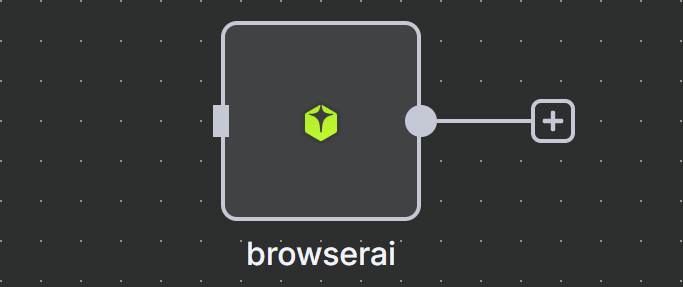 ## What is n8n?
**n8n** is a powerful, open-source workflow automation tool that lets you connect apps, APIs, and services with a visual, no-code interface. It enables you to build complex automations using over 300 integrations or custom logic with JavaScript.
## Why use BrowserAI with n8n?
**n8n-nodes-browserai** is a custom community node built by us for n8n, allowing you to perform everything you can do on the BrowserAI dashboard — directly within your n8n workflows! From creating and managing tasks to automating workflows, commercial and data monitoring, and integrating BrowserAI with other services, this node brings the full power of BrowserAI into your automation stack.
## How to integrate BrowserAI with n8n?
Head to BrowserAI's [npm page](https://www.npmjs.com/package/n8n-nodes-browserai) to download the node, or simpley run this in curl:
```bash theme={null}
npm i n8n-nodes-browserai
```
## How to use BrowserAI with n8n?
Example for a simple task followed by viewing its metadata and results.
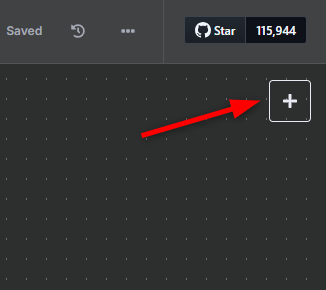
Click the **+ button** in the top-right corner of your workspace to add a new node.
## What is n8n?
**n8n** is a powerful, open-source workflow automation tool that lets you connect apps, APIs, and services with a visual, no-code interface. It enables you to build complex automations using over 300 integrations or custom logic with JavaScript.
## Why use BrowserAI with n8n?
**n8n-nodes-browserai** is a custom community node built by us for n8n, allowing you to perform everything you can do on the BrowserAI dashboard — directly within your n8n workflows! From creating and managing tasks to automating workflows, commercial and data monitoring, and integrating BrowserAI with other services, this node brings the full power of BrowserAI into your automation stack.
## How to integrate BrowserAI with n8n?
Head to BrowserAI's [npm page](https://www.npmjs.com/package/n8n-nodes-browserai) to download the node, or simpley run this in curl:
```bash theme={null}
npm i n8n-nodes-browserai
```
## How to use BrowserAI with n8n?
Example for a simple task followed by viewing its metadata and results.
Click the **+ button** in the top-right corner of your workspace to add a new node.
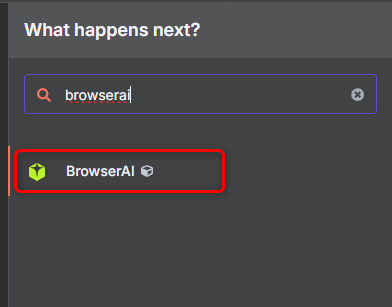
 Search for **BrowserAI** in the node list and select it.
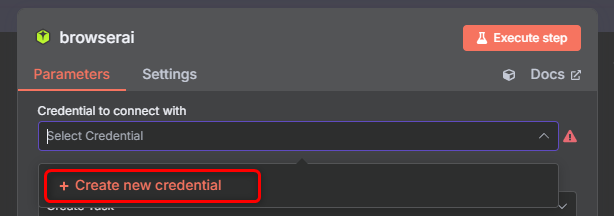
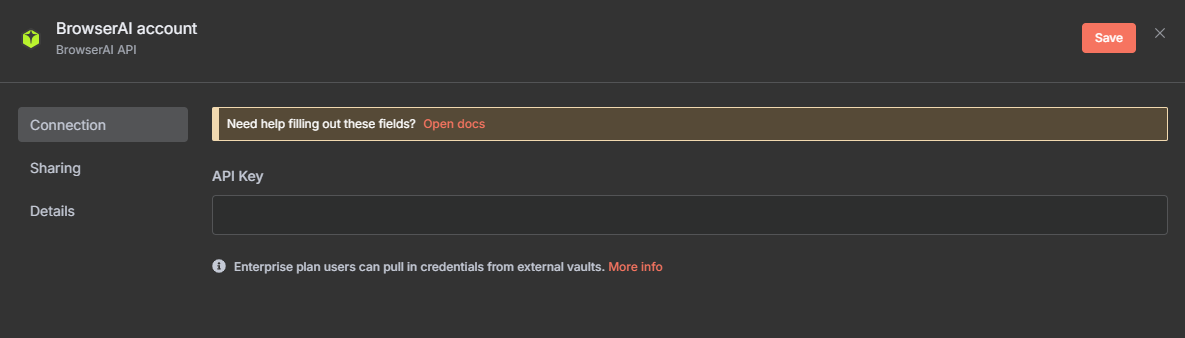
 Click **Create new credentials** to connect your BrowserAI account.
 Paste your **API Key** from the BrowserAI dashboard and click **Save**. Don't know where to find your API key? find out [here](https://docs.browser.ai/api-reference/token).
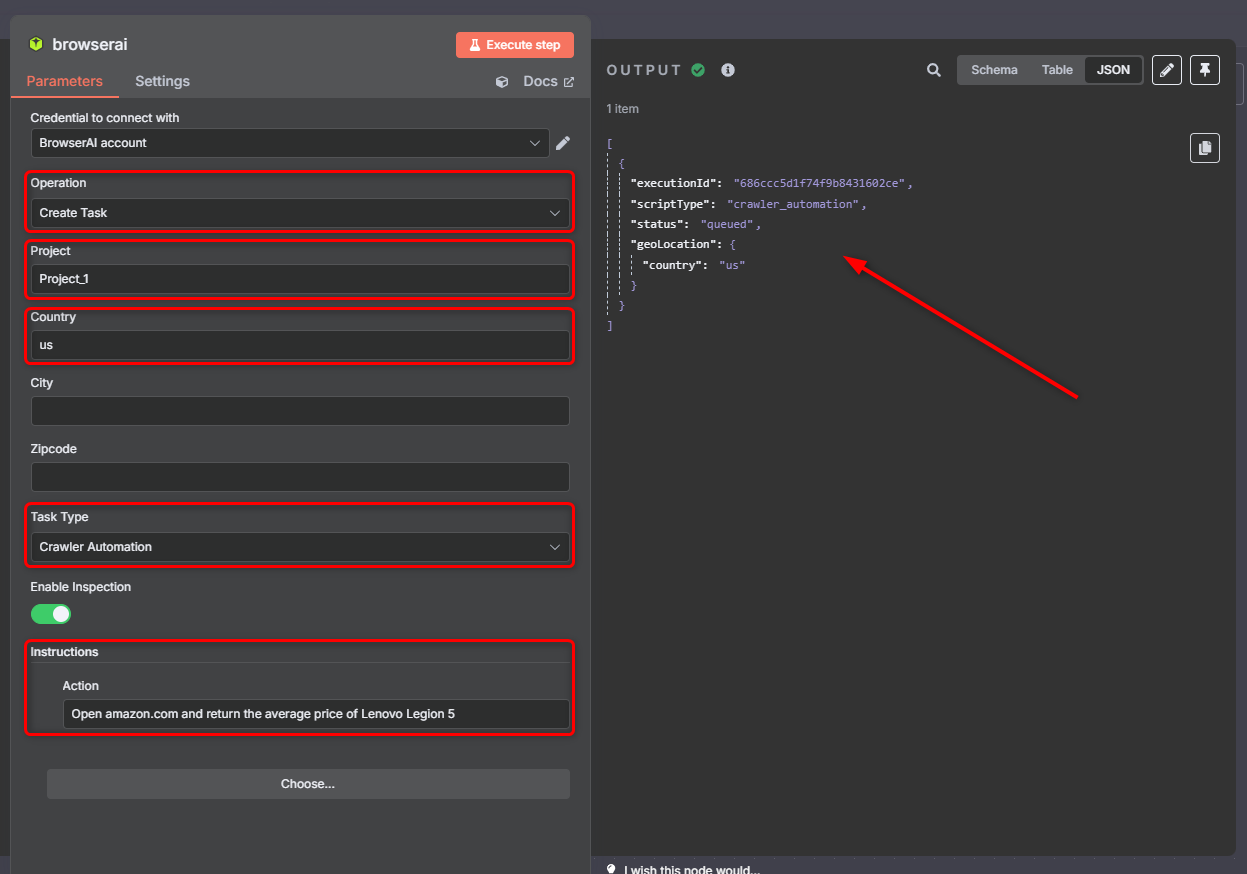
 Set the operation to 'Create Task', select your Project, choose a Country, and set Task Type to 'Crawler Type' for natural-language tasks. Then, **execute the node!**
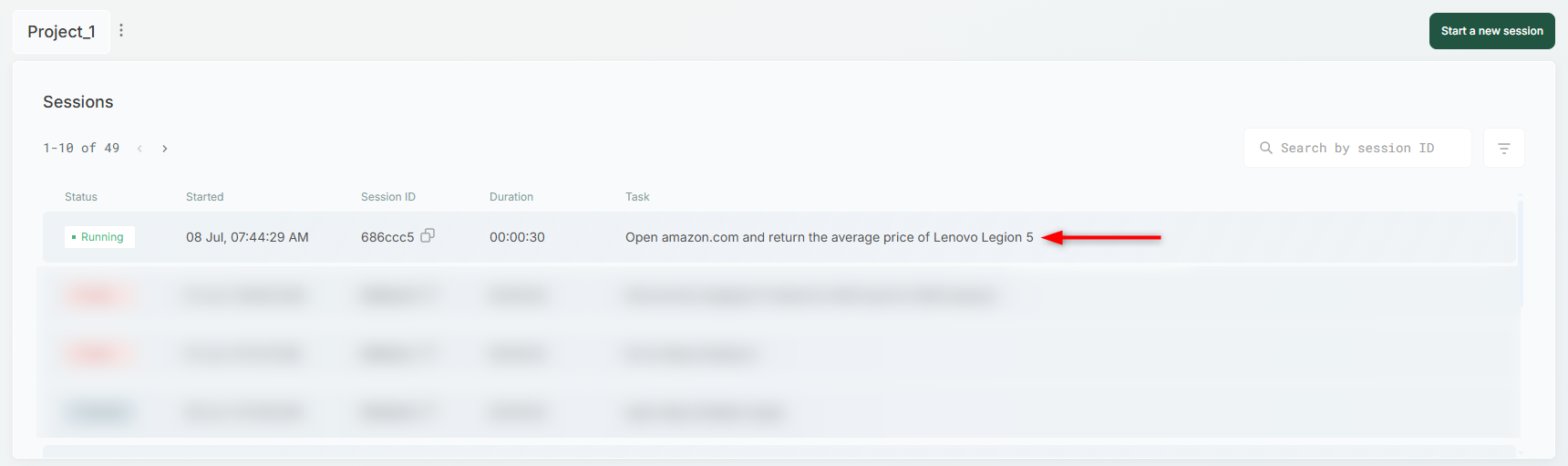
 Once executed, the task will appear immediately in your BrowserAI [dashboard](https://browser.ai/dashboard/page/overview).
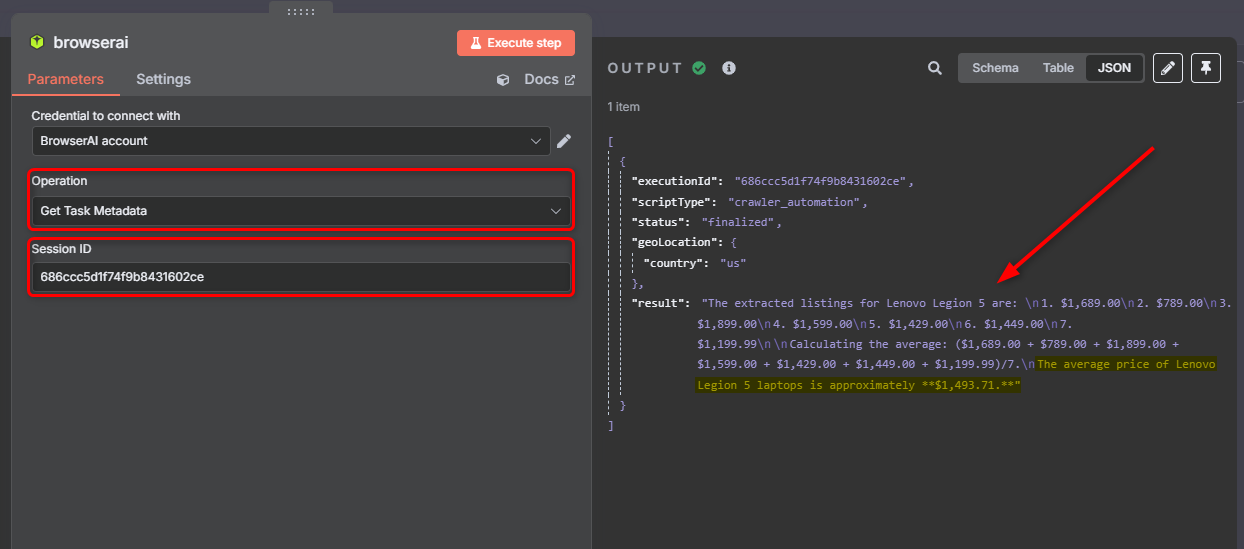
 Now lets give it another try and this time **fetch the task Metadata** by choosing 'Get task metadata' as our Operation, enter the 'Task Session ID', and execute the node to view metadata and **results** on the right panel.
 📧 [Contact us](mailto:support@browser.ai) — we’re happy to help you get started or brainstorm use cases!